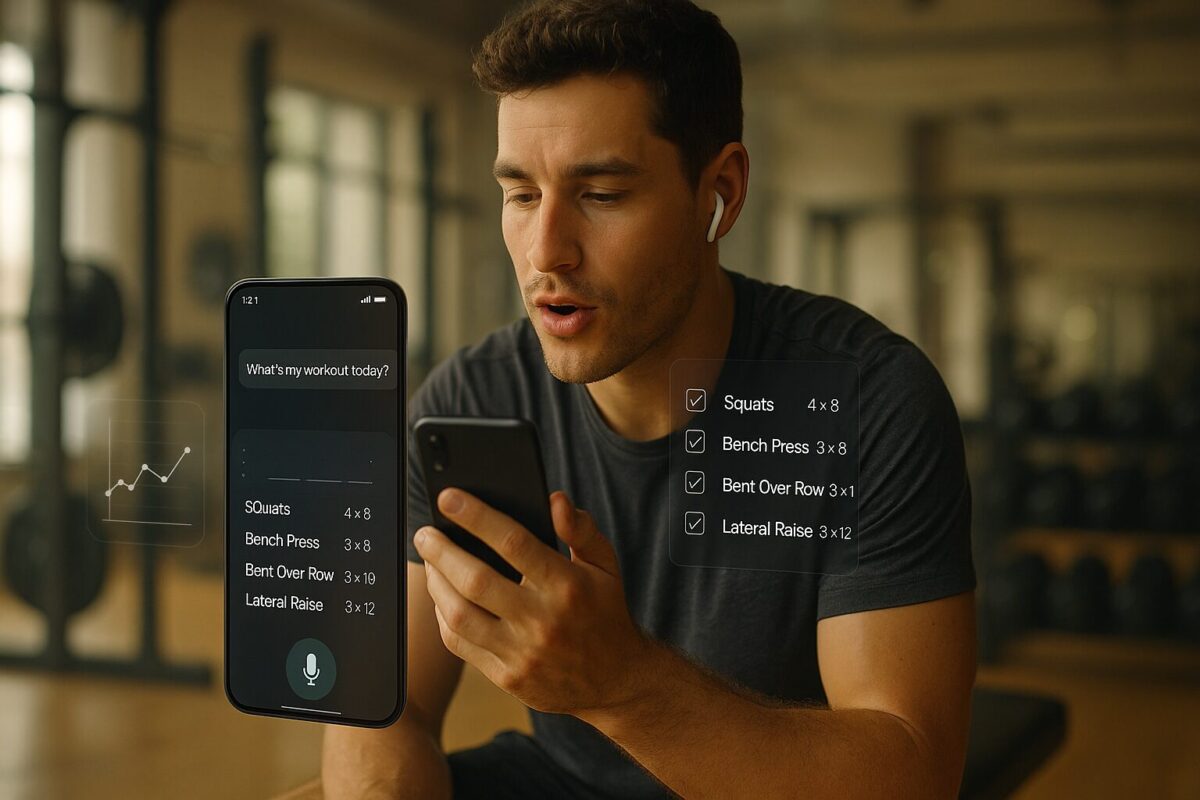
How to Use ChatGPT or Gemini as a Voice Workout Coach (With Script Generator)
AI Voice Coach Script Generator
Fill this in once and get ready-made scripts you can say (or paste) into the ChatGPT or Gemini phone app to use them as a voice-based strength coach.
Most people know ChatGPT and Gemini as “type your question in a box” tools. But both also have mobile apps that let you literally talk to the AI with your voice.
That means you can keep one long-running chat on your phone where the AI acts as your strength coach: it remembers your goals, helps plan workouts, and adjusts your plan based on how your week went.
On this page, you’ll see an AI Voice Coach Script Generator.
You fill in a few details (level, equipment, goal) and it creates three ready-to-use scripts you can say out loud (or paste) into the ChatGPT or Gemini app:
- A script to set up the chat as your long-term coach
- A script to get today’s workout before you train
- A script for a weekly review so the AI adjusts your plan
This guide walks you through:
- How the ChatGPT/Gemini mobile apps fit into this
- How to use the Script Generator step by step
- How to actually talk to the AI and keep it useful as a “voice coach”
⚠️ This is for general workout planning, not medical advice. If you have injuries, pain, or health conditions, talk to a qualified professional before following any plan.
1. ChatGPT & Gemini Mobile Apps: Why They Work as a “Voice Coach”
Both tools offer mobile experiences where you can:
- Install an app on your phone (availability can vary by region)
- Open a conversation
- Tap a microphone button to talk instead of typing
- Let the AI reply with text and sometimes voice
If you keep one dedicated chat for your workouts, you can treat it like this:
- “Coach, what’s my workout today?”
- “Here’s what I actually did, please summarize and tell me what to change.”
- “Here’s my week of training, help me tune the plan for next week.”
The problem is: most people don’t know what to say to get consistent, safe answers.
That’s what the Script Generator on this page solves: it writes the exact words for you, customized with your age, level, equipment, and goals.
2. What the AI Voice Coach Script Generator Does
Scroll to the tool on this page and you’ll see a small form with fields like:
- Training level (beginner / on & off / 1+ year)
- Age
- Days per week you can train
- Training history (short)
- Available equipment
- Main goal
- Injuries or limitations
- Current week (e.g., “Week 3”)
- Today’s session name (e.g., “Day 2” or “Upper A”)
- How you feel today (sleep, soreness, energy)
When you click Generate scripts, the tool gives you three text blocks:
- Script 1 – Start your AI coach chat
- You use this once in a fresh ChatGPT or Gemini chat.
- It introduces you, your level, your goals, your schedule and equipment.
- It clearly tells the AI:
- “Act as a cautious strength coach.”
- “Help me plan, adjust, and review my workouts.”
- It also reminds the AI to stay non-medical and to tell you to stop if something feels wrong.
- Script 2 – Today’s workout (before you train)
- You use this at the start of each training session.
- It tells the AI:
- Which week you’re on
- Which day/session you’re doing
- How you feel today (energy, soreness, any pain)
- The AI replies with:
- A clean checklist of today’s exercises
- Sets and reps
- Simple safety/reminder tips for the key lifts
- Script 3 – Weekly review & plan update
- You use this once per week.
- You give the AI a short log of what you did (weights, sets, missed days, etc.).
- The script tells the AI to:
- Summarize how the week went
- Suggest which lifts should stay, go up slightly, or ease off
- Restate the plan for next week only, so it’s easy to read
You can copy any script with one click, or read it out loud using voice input in the app.
3. How to Use the Script Generator (Step by Step)
Step 1 – Fill in your details
In the Script Generator:
- Choose your training level
- Beginner: never had a real strength program
- On & off: some experience, but not consistent
- Advanced: 1+ year of regular lifting
- Set your age and days per week you can realistically train.
- Add a short training history
- Example:“I’ve done random gym machines and group classes, but never a structured strength program.”
- Describe your equipment
- Full commercial gym
- Home setup (barbell + rack + bench + dumbbells)
- Just dumbbells and bands
- Or anything in between
- Set your main goal
- Get stronger
- Build muscle
- Feel more confident with barbell lifts
- General fitness
- Note any injuries or limitations
- Example: “Mild knee pain, avoid deep lunges. No major back issues.”
- Or: “None that I know of.”
- For the helper fields at the bottom:
- Current week – e.g., “Week 1” when you’re starting
- Today’s session name – e.g., “Day 2” or “Upper A”
- How you feel today – quick snapshot (sleep, energy, soreness)
You can keep these fields generic now and change them later when you re-use the tool.
Finally, click Generate scripts.
The tool will show three text boxes: Script 1, Script 2, Script 3, each with its own Copy button.
4. Script 1 – How to Start Your AI Coach Chat
Use Script 1 once, when you’re setting things up.
On the ChatGPT or Gemini app:
- Open the app on your phone.
- Start a new chat.
- Either:
- Tap the microphone and read Script 1 out loud, or
- Tap into the text box and paste Script 1 (copy from this page first).
Script 1 tells the AI:
- Your age, level, training history, goal, equipment, and injuries
- That you want it to act as a cautious strength coach and workout planner
- That you’ll come back:
- Before training (“What’s today’s workout?”)
- After training (with a quick log)
- At the end of each week (with a weekly summary)
At the end of Script 1, we also ask the AI to:
- Repeat back your level, main goal, and days per week
- Explain how it plans to work with you
This helps confirm it understood everything.
Once it replies, keep this chat. Don’t start a new one for workouts. This is your dedicated “AI coach” thread.
5. Script 2 – How to Get Today’s Workout (With Voice)
Use Script 2 at the start of each training session.
You can update the “Week” and “Today’s session name” fields in the tool whenever you need, then click Generate scripts again and re-copy Script 2. Or you can just edit those details manually when you say it.
Flow on your phone:
- Open the same coach chat you set up with Script 1.
- Tap the microphone.
- Read Script 2, adjusting the parts in plain language:
Example:
“Hi, we’re still in the same chat where you’re acting as my cautious strength coach.
I’m on Week 3, and I’m doing Day 2 – Upper A from the plan you gave me.
Today I slept okay, legs are a bit sore from last workout, energy about 6 out of 10.
Please restate only today’s workout as a clear checklist with sets and reps, give me two or three short safety reminders for the main lifts, and remind me to stop if anything feels painful or unsafe.”
The model will answer with:
- A clean list of exercises, sets and reps for today
- A couple of form/safety cues
That’s your “coach talking through today’s plan”.
After the workout, you can:
- Quickly tell it what you did (sets, reps, weight)
- Ask it to summarize how the session went and what to tweak next time
6. Script 3 – How to Do a Weekly Review and Update Your Plan
Once per week, use Script 3 to keep the plan evolving.
Before you talk to the AI, write a short weekly log somewhere (Notes, Notion, etc.):
- Which days you trained
- Any missed days
- The main lifts and how they felt
- Any pain or fatigue patterns (e.g., “back tightness after deadlifts”)
Then:
- Come back to this page, update Current week in the tool (e.g., “Week 3”).
- Click Generate scripts again and copy Script 3.
- On your phone, open your coach chat, tap the mic, and either:
- Read Script 3 and then read your log where it says
[[SHORT WEEKLY LOG HERE]], or - Paste Script 3 and paste your log into that spot.
- Read Script 3 and then read your log where it says
Script 3 tells the AI to:
- Summarize the week in simple bullet points
- Decide for each key lift if you should:
- Keep weight the same
- Increase slightly
- Back off a little
- Suggest small changes to sets/reps/exercises if something is too hard, too easy, or causing issues
- Restate next week’s plan only, clear and easy to read
This gives you the “coach” effect:
- A plan that adjusts gradually
- Feedback on whether you’re pushing too fast or too slow
- Guidance without you needing to know programming theory
7. Important Safety Notes
Even with a solid prompt and voice scripts, ChatGPT and Gemini are still general AI tools, not doctors or registered coaches.
- They can’t see your technique. If an exercise hurts in a sharp or unusual way, stop and get real help.
- If you have injuries, chronic pain, or medical conditions, talk to a professional before following any AI-generated plan.
- Treat the AI’s plan as a template you can adjust, not a strict order.
The Script Generator on this page is designed to push the AI toward:
- Safer, conservative progressions
- Reminders to stop if something feels wrong
- General strength training guidance, not diagnostics
Yeah, this should be in the article as the “ok, if you want max convenience, use an app” section.
Here’s a section you can paste straight into the article, plus a comparison table.
Dedicated AI Fitness Apps: The More Convenient Option
Using ChatGPT or Gemini as a voice coach is flexible and pretty fun, but it still relies on you:
- Opening the right chat
- Saying the right script
- Keeping some form of log
If you don’t want to think about any of that, dedicated AI fitness apps (Fitbod-style strength apps, smart workout planners, etc.) are the more convenient route.
Here’s what they usually do better:
- Automatic workout history
Every set, rep and weight you log is stored. You don’t have to paste anything into a chat. You can scroll back through weeks or months of training, see when you last did squats, and how much you lifted. - Built-in progression logic
Most AI fitness apps quietly track what you’ve done and then:- Nudge weights up when things look easy
- Hold steady when you struggled
- Back off if you’ve missed sessions
You don’t have to ask “what should I do next?”—it just updates.
- Health app integration
Many AI fitness apps connect directly to:- Apple Health / Apple Watch
- Google Fit / Android wearables
- Sometimes smart scales or HR trackers
That means steps, heart rate and sometimes sleep can be pulled in. The app gets a more complete picture of how much you’re doing outside the gym.
- Gym-friendly interface
Instead of scrolling a long chat thread, you get:- Big buttons for logging sets
- Timers and rest countdowns
- Offline-friendly screens for when the gym Wi-Fi dies
- Notifications and streaks
Apps can ping you on planned training days, show streaks and small milestones, and generally do a better job at reminding you to show up. - Less thinking, more following
With a chat-based voice coach, you’re still “managing” the conversation. With an app, you mostly just open it and follow what’s on the screen.
So for people who like control and conversation, the AI voice coach approach is great.
For people who want it as simple as: “Open app → tap Start Workout”, the dedicated AI app wins.
ChatGPT / Gemini Voice Coach vs Dedicated AI Fitness App
| Aspect | ChatGPT / Gemini Voice Coach | Dedicated AI Fitness App (Fitbod-style) |
|---|---|---|
| Setup | Use a script (like the one from this page) to describe your level, goals, equipment and schedule in one long-running chat. | Quick onboarding flow: choose goal, experience, days per week and equipment inside the app. |
| Workout history | Stored as text in the chat and whatever notes/logs you keep. You may need to scroll and search. | Structured logs of every workout with dates, sets, reps and loads, usually shown in clean history views. |
| Progress tracking | AI can analyze progress if you feed it logs, but you have to remember to paste or dictate them. | Automatic tracking of volume, PRs, and trends. Many apps show charts and stats by lift or body part. |
| Next workout | You ask: “What’s today’s workout?” using a daily script. AI replies with a checklist for that day. | App shows “Today’s Workout” instantly. One tap to start, with exercises and rest timers ready. |
| Health & wearables | No direct Apple Health / Google Fit link unless you build a custom integration. You tell it about sleep/steps manually. | Many apps sync with Apple Health / Google Fit and wearables to pull in steps, heart rate and sometimes sleep data automatically. |
| Logging sets | You either type or voice-dictate what you did, then ask the AI to summarize or adjust. | Tap to tick off sets and adjust weights. Little to no typing, designed for in-gym use. |
| Customization & explanations | Very flexible. You can ask “why this rep range?”, change the entire block, or get long explanations in plain language. | Less flexible programming but highly convenient. Some explanation tips, but not full Q&A like a chat model. |
| Reminders & motivation | No built-in reminders; you’d use phone reminders or habits apps. | Push notifications, streaks, badges and scheduled workout reminders built in. |
| Best for | People who like talking through their training, asking questions, and don’t mind a bit of manual logging. | People who just want a solid plan, auto-tracking and integrations without managing prompts or chat history. |
If you enjoy chatting with an AI and understanding the “why” behind your training, the voice-coach approach using ChatGPT/Gemini plus the scripts on this page is great. If you’d rather let an app handle logging, history, and health data automatically, a dedicated AI fitness app is usually the easier option.